MikroTik Critical Settings: Security, Firewall, Failover and Troubleshooting (RouterOS v7)
In many offices and factories a single MikroTik router carries everything: the internet connection, Wi-Fi, CCTV access, the HRMS or ERP server and remote access. A handful of settings decide whether that router is secure, whether it keeps working when an ISP fails, and how fast you can recover when something breaks.
This guide covers those critical settings for RouterOS v7, with commands you can paste into the terminal (Winbox → New Terminal). The last part is a set of solutions for the network problems that cause the most downtime.
The reference network
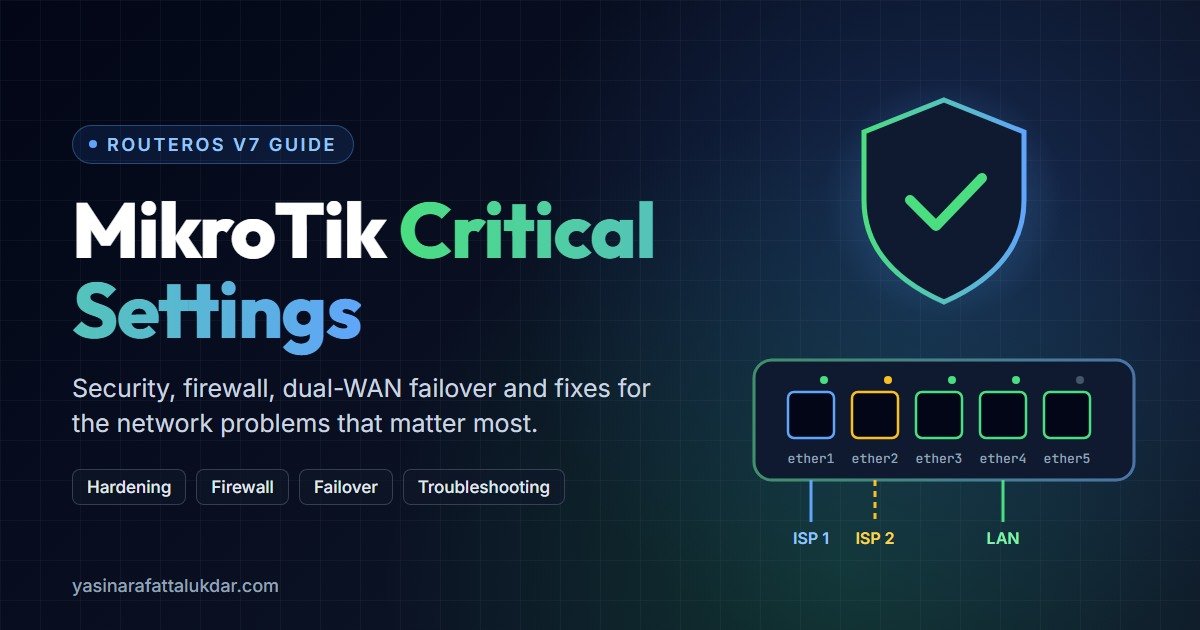
All examples use the network below. Replace the addresses with your own. Click any diagram in this guide to open it at full size.

- ether1: ISP 1 (primary),
10.10.10.2/30, gateway10.10.10.1 - ether2: ISP 2 (backup),
10.20.20.2/30, gateway10.20.20.1 - bridge (ether3 to ether5): office LAN
192.168.88.0/24, router at192.168.88.1 - An internal server at
192.168.88.10; DHCP hands out.100to.254
0. Work safely: Safe Mode and a backup first
Most MikroTik disasters start with a firewall or routing change that cuts off the person making it. Two habits prevent that.
Turn on Safe Mode before changing anything: click Safe Mode in Winbox, or press Ctrl+X in the terminal. If your connection to the router drops while Safe Mode is on, the router automatically undoes every change you made in that session. When you are happy with the result, turn Safe Mode off to keep the changes.
Take a backup and copy it off the router:
/system backup save name=before-changes password="a-strong-backup-password"
/export file=before-changes
- The
.backupfile restores the complete configuration, including users and passwords, on the same device. The password encrypts the file. - The
.rscexport is readable text. You can review it, compare versions and reuse parts of it on another router. RouterOS v7 leaves passwords and keys out of exports unless you addshow-sensitive.
Download both files from Files to your PC. A backup that exists only on the router is lost together with the router.
1. Update RouterOS and lock down the accounts
Outdated RouterOS is the biggest single risk. In 2018 a Winbox flaw (CVE-2018-14847) let attackers read the user database of unpatched routers, and hundreds of thousands of MikroTik devices were later abused for cryptocurrency mining and botnets. Many of the routers in the later attacks had been updated but still used the passwords stolen earlier. Updating is essential, and so is changing passwords.
/system package update set channel=stable
/system package update check-for-updates
/system package update install
After the router restarts, upgrade the RouterBOARD firmware to match:
/system routerboard print
/system routerboard upgrade
/system reboot
Replace the default admin account with your own:
/user add name=netadmin group=full password="use-a-long-unique-passphrase"
# Log in again as netadmin and confirm it works, then:
/user disable admin
/user print
While you are there, check for things you did not create. Unknown users, scheduler entries or scripts are a sign of compromise:
/system scheduler print
/system script print
2. Turn off services you do not use
Every enabled service is a door. List them, disable the unused ones, and allow management only from the LAN:
/ip service print
/ip service disable telnet,ftp,www,api,api-ssl
/ip service set winbox address=192.168.88.0/24
/ip service set ssh address=192.168.88.0/24
/ip ssh set strong-crypto=yes
If you manage the router in a browser (WebFig), keep www-ssl instead of www and limit it to the LAN in the same way. If you manage it over a VPN, add the VPN subnet to address.
Then limit the discovery and helper services to the LAN and switch off the ones most offices never need:
/tool mac-server set allowed-interface-list=LAN
/tool mac-server mac-winbox set allowed-interface-list=LAN
/tool mac-server ping set enabled=no
/ip neighbor discovery-settings set discover-interface-list=LAN
/tool bandwidth-server set enabled=no
/ip socks set enabled=no
/ip proxy set enabled=no
/ip upnp set enabled=no
UPnP lets any device on the LAN open ports on your router automatically. Leave it off unless you have a specific reason to use it.
3. Interface lists: tell the router what is WAN and what is LAN
The firewall rules below match on the interface lists WAN and LAN, not on individual ports. The default configuration creates both lists. Check them:
/interface list member print
If they are missing (for example on a router that was set up without the default configuration), create them:
/interface list add name=WAN
/interface list add name=LAN
/interface list member add list=WAN interface=ether1
/interface list member add list=WAN interface=ether2
/interface list member add list=LAN interface=bridge
Two details cause a lot of trouble:
- PPPoE: add the PPPoE interface (for example
pppoe-out1) to the WAN list, not just the ethernet port underneath it. - New VLANs or LAN ports: add them to the LAN list. Otherwise the firewall treats them as outside, and devices on them cannot even get an address from the DHCP server.
4. The firewall: protect the router and the LAN
The RouterOS firewall has separate chains for traffic going to the router and traffic going through it. Knowing which chain to use is the most important firewall concept.

- input protects the router itself: Winbox, SSH, DNS, VPN.
- forward protects the devices behind it.
First look at what is already there:
/ip firewall filter print
Most MikroTik devices ship with a good default firewall. A router that was set up with no default configuration (common on CCR and CHR installations, or when an installer removed it) may have no firewall at all. That is the most critical problem you can find on a router. These are the essential rules, the same as the RouterOS v7 defaults:
/ip firewall filter
add chain=input action=accept connection-state=established,related,untracked comment="accept established,related,untracked"
add chain=input action=drop connection-state=invalid comment="drop invalid"
add chain=input action=accept protocol=icmp comment="accept ICMP"
add chain=input action=drop in-interface-list=!LAN comment="drop all not coming from LAN"
add chain=forward action=fasttrack-connection connection-state=established,related hw-offload=yes comment="fasttrack"
add chain=forward action=accept connection-state=established,related,untracked comment="accept established,related,untracked"
add chain=forward action=drop connection-state=invalid comment="drop invalid"
add chain=forward action=drop connection-state=new connection-nat-state=!dstnat in-interface-list=WAN comment="drop all from WAN not DSTNATed"
Rule order matters. The router checks rules from top to bottom and stops at the first match. Anything you want to allow from outside must sit above the drop all not coming from LAN rule. For example, to accept WireGuard VPN connections, find the number of that drop rule with print, then:
/ip firewall filter add chain=input action=accept protocol=udp dst-port=13231 in-interface-list=WAN comment="WireGuard VPN" place-before=3
Use a VPN such as WireGuard for remote management instead of opening Winbox or SSH to the internet.
Finally, the NAT rule that lets the whole LAN share the WAN addresses:
/ip firewall nat
add chain=srcnat action=masquerade out-interface-list=WAN comment="masquerade LAN to internet"
Matching the WAN list means one rule covers both ISPs. To publish an internal server, see my guide to MikroTik port forwarding and hairpin NAT.
5. DNS: fast for the LAN, closed to the internet
/ip dns set servers=1.1.1.1,8.8.8.8 allow-remote-requests=yes
allow-remote-requests=yes lets LAN devices use the router as their DNS server, which speeds up browsing thanks to the router's cache. It is safe only because the input firewall drops DNS queries arriving from the WAN.
Without that firewall rule the router becomes an open resolver. Attackers use open resolvers to amplify DDoS attacks, and the typical symptoms are high CPU and heavy upload traffic when nobody is using the network. You can check with Torch:
/tool torch interface=ether1 port=53
Lots of traffic from unknown public addresses on port 53 means your router is answering DNS for the whole internet. Fix the input chain as shown in section 4.
6. Dual-WAN failover that actually works
The usual failover setup, two default routes with check-gateway=ping, has a hidden weakness: it only pings the ISP's gateway. When the ISP's own upstream fails, the gateway still answers, the router believes everything is fine, and the office stays offline.
The solution is recursive routing: the router checks a real internet host through each ISP.

/ip route
add dst-address=8.8.4.4/32 gateway=10.10.10.1 scope=10 comment="check host via ISP1"
add dst-address=1.0.0.1/32 gateway=10.20.20.1 scope=10 comment="check host via ISP2"
add dst-address=0.0.0.0/0 gateway=8.8.4.4 target-scope=11 check-gateway=ping distance=1 comment="default via ISP1"
add dst-address=0.0.0.0/0 gateway=1.0.0.1 target-scope=11 check-gateway=ping distance=2 comment="default via ISP2 (backup)"
How it works:
- The two
/32routes pin each check host to one ISP, so8.8.4.4is always reached through ISP 1 and1.0.0.1through ISP 2. - The default routes use those check hosts as their gateway.
scope=10andtarget-scope=11allow the router to resolve that gateway through the/32route. - The router pings each gateway every 10 seconds. If the check host behind ISP 1 stops answering (after roughly 20 seconds), the distance 1 route becomes inactive and all traffic moves to ISP 2. When ISP 1 recovers, traffic moves back automatically.
Things to get right:
- Remove the old default routes, including any added automatically by a DHCP or PPPoE client (set
add-default-route=noon the client). Otherwise they compete with the new ones. - Do not use the check hosts as your only DNS servers.
8.8.4.4is always routed through ISP 1, so it disappears when ISP 1 fails. That is why section 5 uses1.1.1.1and8.8.8.8for DNS. - These commands assume fixed WAN addresses. For a PPPoE connection, use the interface name as the gateway of the check host route, for example
gateway=pppoe-out1. - Test it: unplug ISP 1, run
/ip route print where dst-address=0.0.0.0/0, and watch the backup route become active. Open calls and downloads restart after a switch, which is normal.
7. Bandwidth control: a fair share for every user
When one person starts a large download, everyone else's calls and browsing suffer. A PCQ queue divides the connection equally between the active devices:
/queue type
add name=pcq-download kind=pcq pcq-classifier=dst-address pcq-rate=0
add name=pcq-upload kind=pcq pcq-classifier=src-address pcq-rate=0
/queue simple
add name=lan-fair-share target=192.168.88.0/24 max-limit=90M/90M queue=pcq-upload/pcq-download comment="100 Mbps line, limited to about 90%"
max-limitis written as upload/download. Set it to about 90% of the speed you really get, so that traffic waits in your router's fair queue and not in the ISP's equipment.pcq-rate=0means "no fixed limit per device": the available bandwidth is shared equally.
FastTrack skips queues. Connections accelerated by the fasttrack rule from section 4 bypass simple queues, so the limit seems to do nothing. If you rely on queues, disable FastTrack:
/ip firewall filter disable [find action=fasttrack-connection]
That costs CPU, so on small routers watch /system resource print under load.
8. Backups on a schedule
A backup from last year is almost as bad as none. Let the router export its configuration every week:
/system scheduler
add name=weekly-export interval=7d start-time=02:00:00 on-event="/export file=weekly-config"
Copy weekly-config.rsc off the router regularly, and always take a full .backup (section 0) before a major change or a RouterOS upgrade.
9. Protect the LAN from loops and rogue DHCP servers
Two LAN problems can take down a whole office in seconds.
Loops. A cable plugged into two switch ports, or two switches connected twice, creates a broadcast storm. The network slows to a crawl and switch lights flash constantly. Make sure the bridge runs Rapid Spanning Tree (the default), and enable loop protection on managed switches too:
/interface bridge set bridge protocol-mode=rstp
Rogue DHCP servers. Someone connects a home Wi-Fi router to a LAN socket, and PCs start getting addresses like 192.168.0.x from it and lose the internet. Let the router warn you:
/ip dhcp-server alert add interface=bridge disabled=no on-alert=":log warning \"Rogue DHCP server on LAN\""
/ip dhcp-server alert print
When an unknown server appears, find the port it is connected to with its MAC address:
/interface bridge host print where mac-address=AA:BB:CC:DD:EE:FF
10. Critical network problems and their solutions
The internet is down for everyone
Work from the WAN link inwards. The first check that fails shows you where the problem is.

/interface print
/ping 10.10.10.1 count=4
/ping 8.8.8.8 count=4
/ping google.com count=4
/ip route print where dst-address=0.0.0.0/0
/ip firewall nat print
/log print where topics~"error"
- If
8.8.8.8answers butgoogle.comdoes not, the problem is DNS, not the internet. - If the router can reach everything but PCs cannot, look at DHCP, the masquerade rule and the forward chain.
Locked out after a firewall change
- If Safe Mode was on, wait: the router undoes the change by itself.
- Otherwise connect a PC to a LAN port and open Winbox by MAC address (the Neighbors tab). MAC-Winbox works even when IP access is blocked, as long as the port is in the LAN list.
- As a last resort, reset the configuration with the reset button (the timing depends on the model, so check its manual), restore your backup, or reinstall RouterOS with Netinstall.
The internet is slow or the router's CPU is at 100%
/system resource print
/tool profile
/tool torch interface=ether1
/interface ethernet monitor ether1
/tool profileshows what the CPU is busy with (press Ctrl+C to stop). Highdnsornetworkingload with no users points to an open resolver or an attack: fix the input chain.- Torch shows which LAN device is using the bandwidth. Use the PCQ queue from section 7.
ethernet monitorshould show the expected speed andfull-duplex. A 100 Mbps link or half duplex on a gigabit port usually means a bad cable.- Queues work but the CPU is overloaded: re-enable FastTrack if you can live without queues, or move to a more powerful router.
Some websites never finish loading on a PPPoE connection
Small pages open but large pages, HTTPS uploads or some apps hang. PPPoE adds an 8-byte header, which lowers the MTU to 1492, and oversized TCP packets get dropped. The default PPP profile adjusts TCP MSS automatically (change-tcp-mss=yes, check with /ppp profile print). If the problem continues, clamp it explicitly:
/ip firewall mangle
add chain=forward action=change-mss new-mss=clamp-to-pmtu passthrough=yes protocol=tcp tcp-flags=syn out-interface=pppoe-out1 comment="clamp MSS on PPPoE"
Some PCs get a wrong IP address or show "No internet"
Usually a rogue DHCP server (section 9) or two devices with the same IP. /ip arp print shows which MAC address currently holds each IP, and /ip dhcp-server lease print shows what your DHCP server handed out. Give servers and printers either a static address outside the DHCP pool or a static lease.
Failover does not switch when ISP 1 fails
The default route is checking only the ISP gateway. Use recursive routing (section 6), and check that no route added by a DHCP or PPPoE client has a lower distance than your own routes.
Unknown users, scripts or strange behaviour
Treat it as a compromise. Check /user print, /system scheduler print, /system script print, /ip socks print and /file print. Upgrade RouterOS, change all passwords and remove anything you did not create. The safest recovery is a clean Netinstall, followed by restoring only settings you have reviewed from an export.
Quick checklist
- Safe Mode on and a fresh backup copied off the router before every change
- RouterOS and RouterBOARD firmware up to date
- Default
admindisabled; long, unique passwords for every user - Telnet, FTP, API and unused services off; Winbox and SSH limited to the LAN
- MAC server and neighbor discovery limited to the LAN list
- Input chain drops everything not coming from the LAN
- Forward chain drops new WAN connections unless they were dst-natted
- Masquerade on the WAN interface list
- DNS remote requests enabled only behind the firewall
- Recursive routes for dual-WAN failover, tested by unplugging ISP 1
- PCQ fair queue, with FastTrack disabled if you rely on it
- Weekly configuration export, RSTP on the bridge and DHCP alerts on the LAN
Need help securing or setting up a MikroTik network for your office? Get in touch.